Support from the Learning Technology & Innovation (LT&I) Team
- We hold virtual office hours through BigBlueButton in our Teaching Unbound Moodle course. The enrolment key is help if you are new to the course.
- Tuesdays 10am-12pm
- Wednesdays 2pm-4pm
- Thursdays 10am-12pm
- Email moodlenp@tru.ca with any questions you have and someone from the LT&I team will be able to provide guidance.
- Visit the Moodle Orientation website.
Tips and Tricks in Moodle
Creating a “sandbox” course to develop content in
Course Creation Options in Moodle
A) Using the Automatically Created Live Course with Student Enrolments
- Each “live” course with student enrollments is automatically created about 8 weeks before the term start date
- If you would like to start developing your course before then, you will need to request a “sandbox” course (see instructions below).
- Think of the “sandbox course” as a temporary space to begin course development that gets finished in the final, “live” course. The “live” course then becomes the next version of the course to copy into a “sandbox” course for future edits.
B) Requesting a “Sandbox” Course to be Created without Student Enrolments
There are two main steps to request a “sandbox” course.
1. Please use the Course Request Form and fill out the following fields:
- Course name: Please use the following example structure using the specific details from your course and the term you are developing for: NURS5350 – Clinical Reasoning in Advanced Health Assessment (In Development – Winter 2026)
- Course short name: Please use the following example structure using the details of your course: NURS 5350 W26 In development
- Category: Start typing nursing and choose the latest term available for the School of Nursing (e.g. TRU Fall 2025 / School of Nursing (Fall 2025))
- Summary: leave blank
- Additional information: You can request to have content copied in from a previous version of the course. However, if you are not the owner of the previous course, we need permission from the course owner. You can send a follow up email to moodlesupport@tru.ca with permission details, as needed.
2. Email moodlenp@tru.ca confirming you filled the form out.
Please note: If you use a “sandbox” course, you will need to copy the content to the “live” course before term starts. Additional edits can then be made in your “live” course.
- You can request the moodlenp@tru.ca team to do this (we will need to know the exact name of each course and the details about what you want copied over).
- You can do this yourself by following the Importing Course Content instructions on the Moodle Orientation site.
Importing content into your course
To learn more about importing content into your course, visit the Importing Course Content instructions on the Moodle Orientation website.
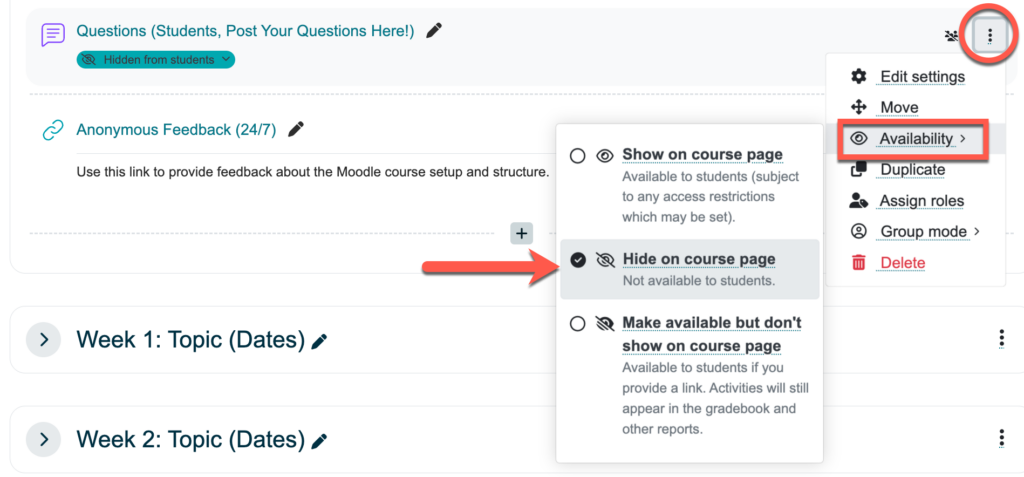
Hide/show items in Moodle
- Click the three vertical dots to the right of the course item
- Hover over Availability
- Select Hide on course page
- Repeat the steps to “show” the item
Highlight a week in the template
- Click the three vertical dots to the right of the course section
- Select Highlight
- Repeat the steps to remove the highlight
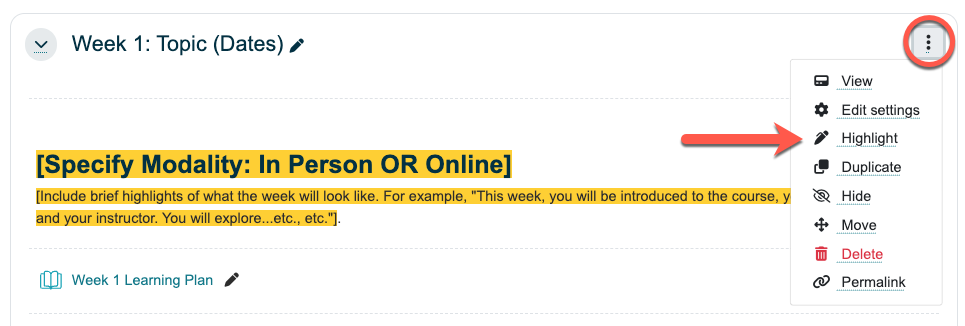
The week will now appear highlighted for students to direct their attention and make it stand out from the rest:

Adding User Overrides to a Quiz for In-Person Proctored Exams
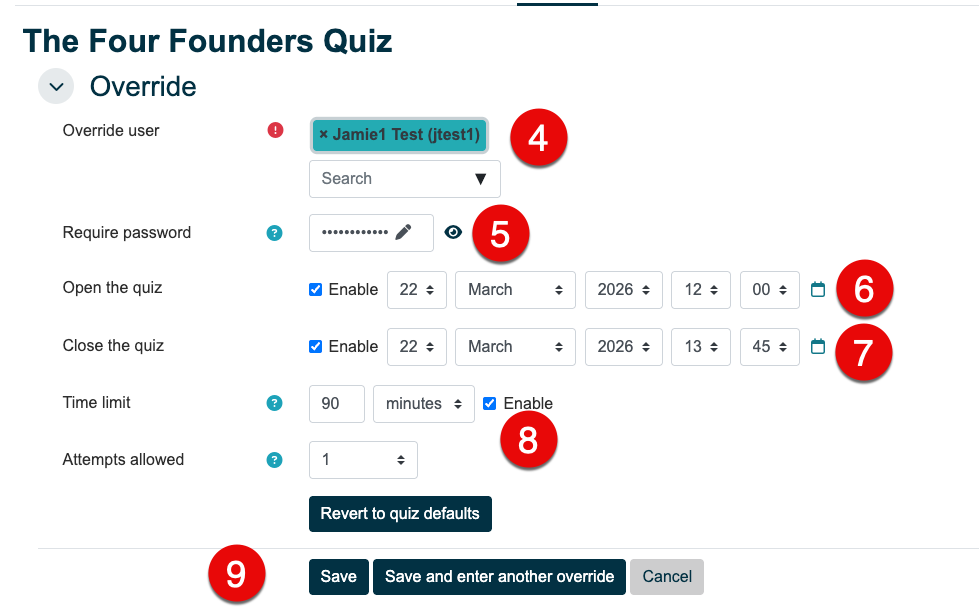
You can customize what time a quiz opens and closes as well as provide a unique password by adding user overrides.
To do this:
- Click the quiz to open it
- Select More and then Overrides from the drop-down list
- Click the Add user override button
- Select the name of the user in the Override user dropdown list
- Add a unique password for that student in the Require password textbox
- Set the Open the quiz date and time
- Set the Close the quiz date and time
(We recommend adding a few minutes to the close the quiz time in case students cannot start the quiz immediately at the open the quiz time. The quiz will submit itself when the time limit is up or when the quiz is set to close, whichever comes first) - Ensure the time limit and number of attempts are correct
- Click the Save button or Save and enter another override button
- Email the password and other required information to the invigilator